
Build, check, and save the blueprint
Claude writes the blueprint from the files in the client folder. You render it, run the source check, fix what it flags, and save it to get the client's link.
Watch the walkthrough
The flow
Step by step
Open a new conversation in the Blueprint Engine project
On claude.ai, open the Blueprint Engine project and start a new conversation named after the brand. One client, one conversation. Everything about this blueprint happens here.
Attach the files and send one prompt
Attach [Brand] Teardown.json and the call transcript from 1 Triage, and every file from 2 Blueprint. Then send:
Optional, in the same message: a line or two of strategy direction, like "Lead with positioning, the ads are fine." Your direction is followed.
Read Claude's note before anything else
Claude replies with a short note, then the blueprint as a file named [Brand] Blueprint.json. The note tells you:
- which files it used and anything missing
- numbers the founder said that the exports contradict
- anything promised on the call that the blueprint does not cover. That is yours to follow up on.
Paste the JSON and click Render
Open the JSON file, select all, and copy. Go to engine.shopanova.com/blueprint, paste, and click Render.
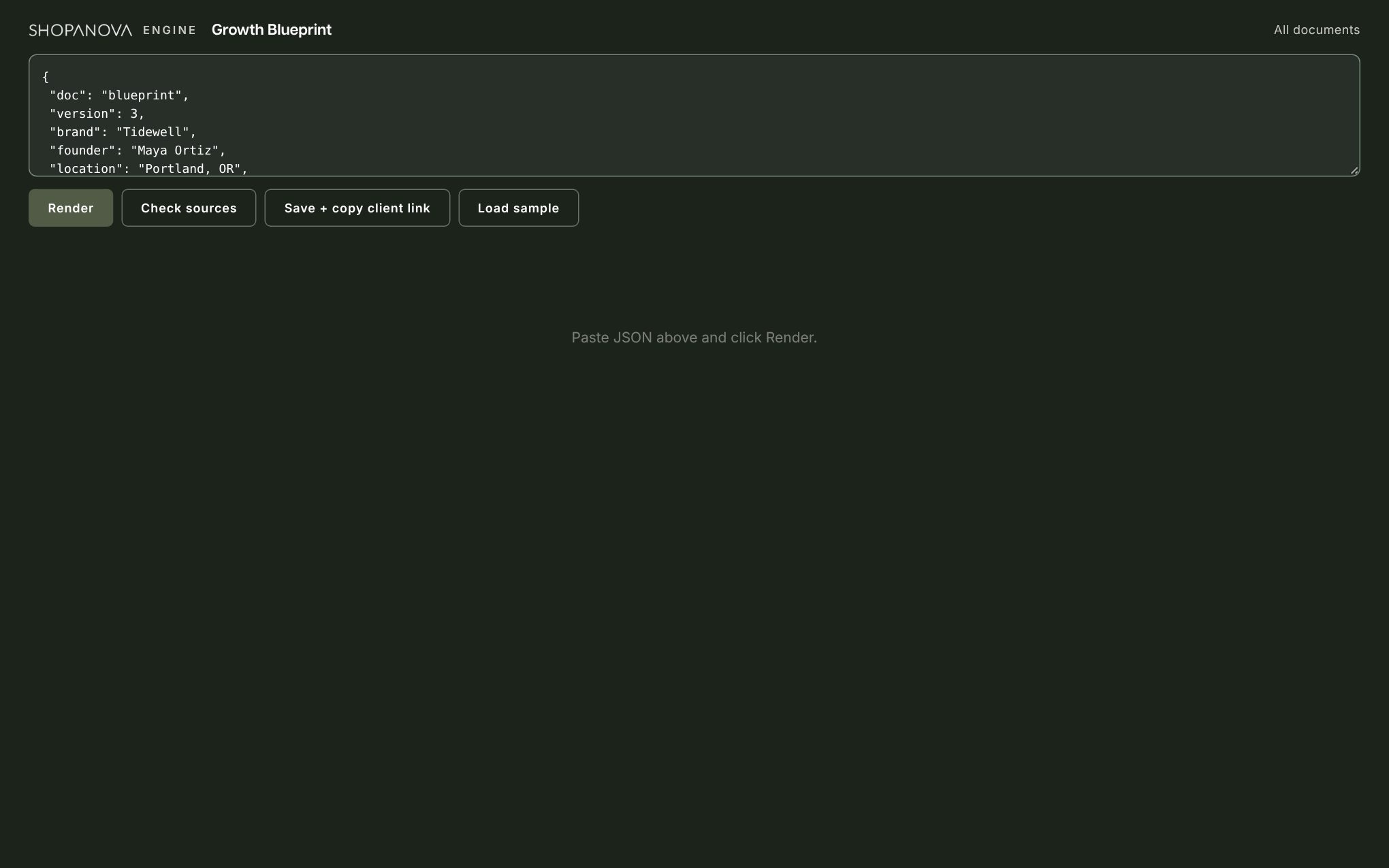
Clear the bar at the top
If the bar lists Missing sources, a fact is on the page with no file behind it. Paste the list into the conversation, ask Claude to fix it, and render the new JSON. When nothing is missing, the bar reads "Every fact names a source."
Click Check sources
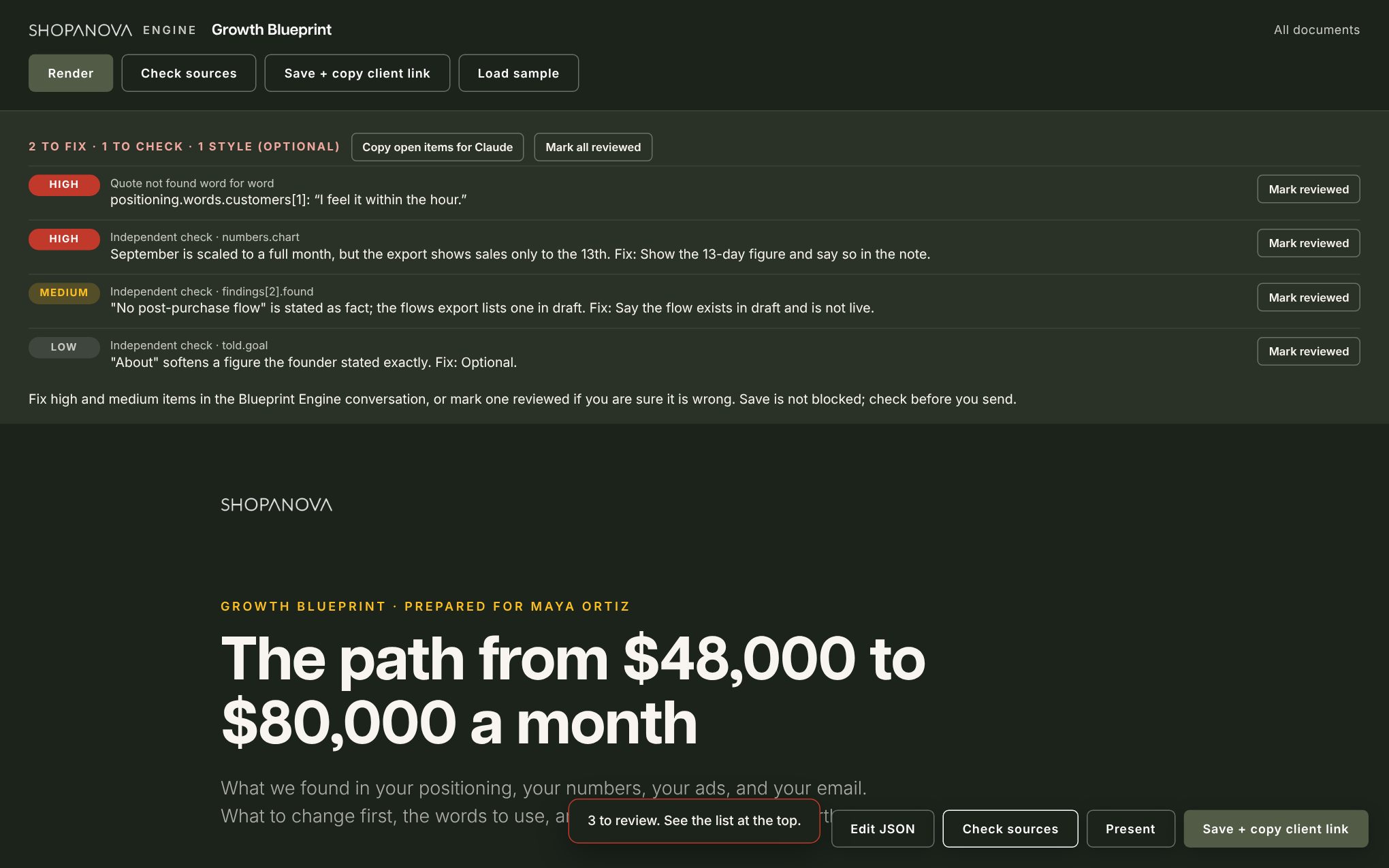
The Engine opens the client folder, confirms every file exists and every quote is word for word, and a second Claude that did not write the blueprint reads the sources and flags anything unsupported, miscalculated, or worded so the founder could dispute it. It takes about a minute.
Fix the flags
Click Copy open items for Claude, paste into the conversation, and Claude returns the full revised JSON. Paste it into the Engine and Render. The page shows how many fields changed: click Check just the changes.
- High: fix it.
- Medium: check it and fix it if it is right.
- Low: style. Optional.
Click Mark reviewed only when you are sure a flag is wrong. One check per version is enough. Checking the same version again only produces new nitpicks.
Save and copy the client link
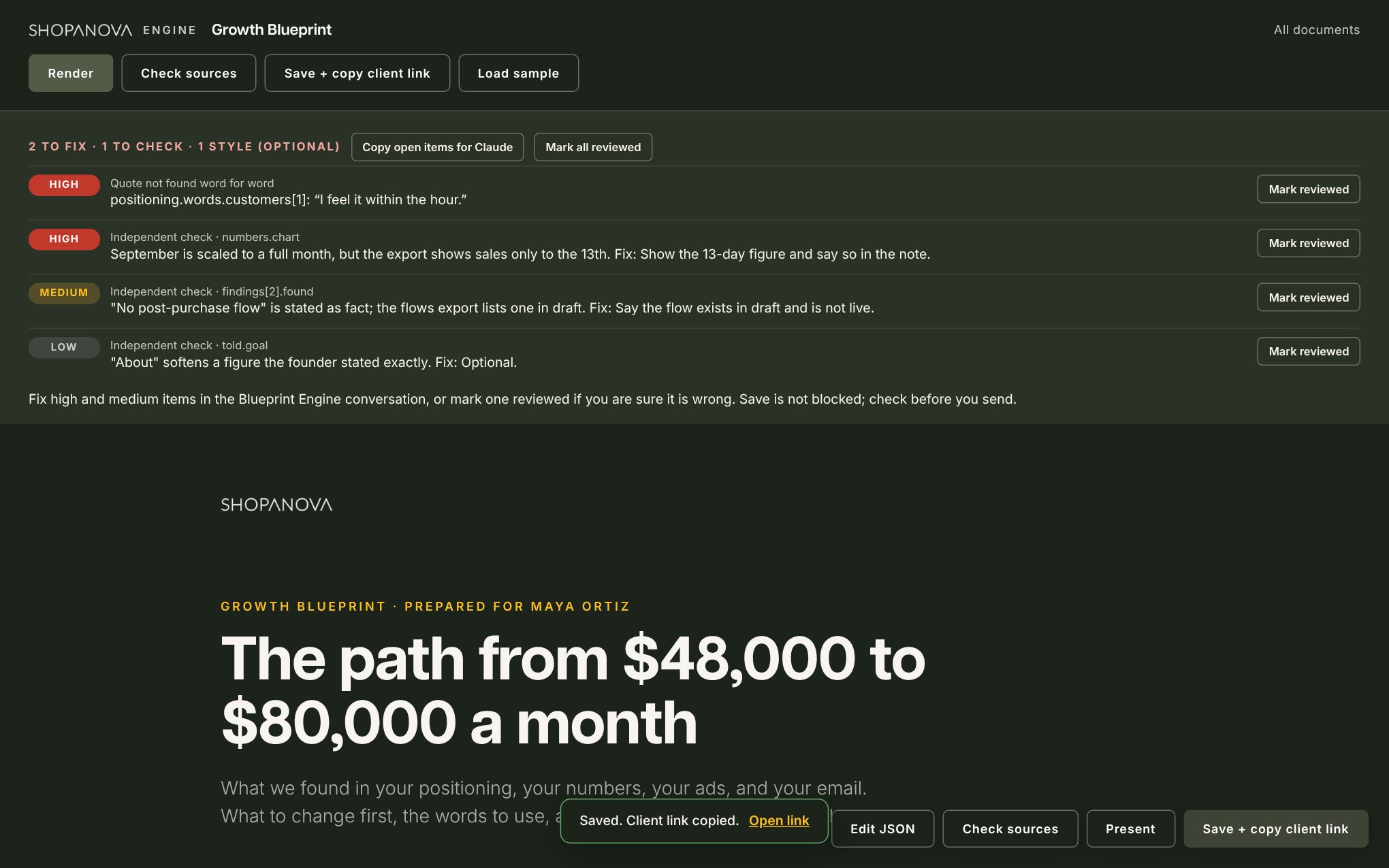
Click Save + copy client link. It saves everything to 2 Blueprint and copies the link: engine.shopanova.com/[brand]. The link also goes into GHL and the Blueprints sheet. Saving again updates the same link.
The page lets you save without a clean check, so the check is on you. Never send a link you have not checked.
Read the whole page before the call
Open the link and read it top to bottom. You will be asked about it, and every number has its source under it.
Changing anything later
Say what to change in plain English in the same conversation, then add:
Claude returns the whole thing with your change applied and nothing else altered. Render, check just the changes, and save again. The client link stays the same.
Before you move on
Done when
- The note is read, and anything promised outside the blueprint has an owner
- No missing sources in the bar
- Check sources run on the final version, with every high and medium item fixed or marked reviewed
- Saved, and the client link opens
- You have read the whole page
Rules that are not optional
- Three findings, not four. A fourth goes in the Growth Map.
- No playbooks in a blueprint.
- No em dashes, no exclamation points, no guarantees, no pricing for our services.
- Do not hand-edit the JSON. Ask Claude.
If something goes wrong
- "Invalid JSON"
- The paste was cut off. Open the file again, select all, copy, and paste.
- "This JSON is a roadmap document"
- You are on the wrong page. Growth Maps render at /growth-map.
- "The link /[slug] already belongs to..."
- Another client has that short link. Ask Claude to add a different "slug" to the JSON and save again.
- "File not in the client folder"
- A source file is named in the blueprint but is not in Drive, or the name does not match exactly. Fix the file name in the folder, or ask Claude to correct it.
- Claude says a required file is missing
- It needs the teardown JSON, the transcript, and Shopify data. Find them (see Pull the client's data) and attach them.
- "No client folder for [brand]"
- The folder is made when the blueprint is paid. If this client was sold a service with no blueprint, open the folder from Sold without a blueprint.