
Create client resources
Creative briefs, email calendars, promotion plans: anything the Growth Engine writes for a client gets rendered in the Shopanova style and saved to their folder as an HTML and a PDF.
Watch the walkthrough
The flow
Step by step
Ask for the document in the client's conversation
In the client's Growth Engine conversation, one prompt each:
You can ask for anything else the client needs next the same way: a promotion plan, Q4 ad concepts, an organic plan. Each comes back as markdown and names the playbook the client should be working through while they execute it.
Paste it into the resource page
Open engine.shopanova.com/resource. Type the brand as the client folder is named, add a title, and paste the markdown.
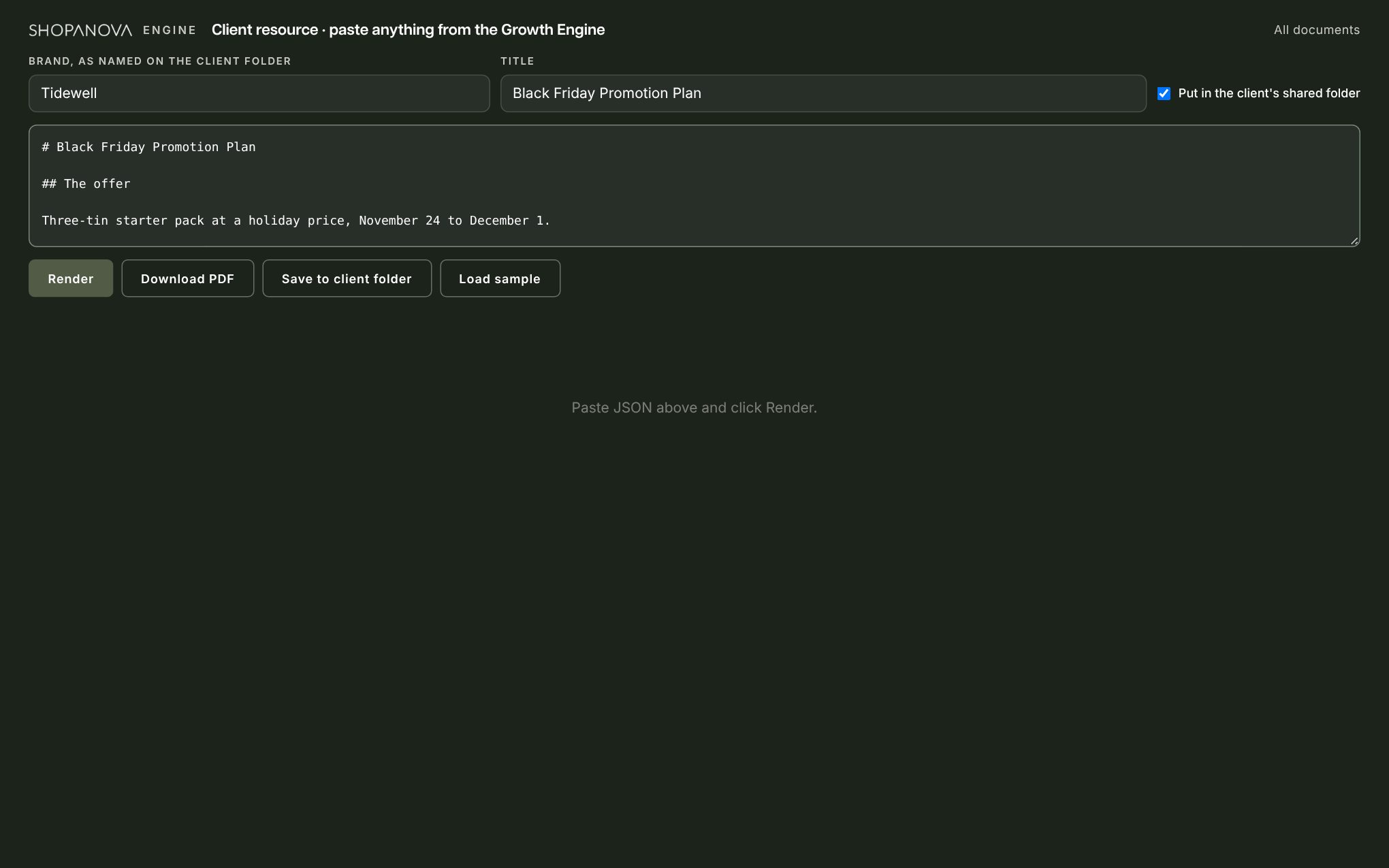
Render and read it
Click Render. Read it once as the client will. If something needs to change, ask in the conversation and paste the new version.
Save to the client folder
Click Save to client folder. It lands as a styled HTML and a PDF in the folder shared with the client. Untick Put in the client's shared folder first if it should stay internal.
Keep the conversation going
Use the same conversation for the whole engagement. Paste progress updates as they happen. Every so often, ask for a status update and save it to the client folder the same way.
Before you move on
Done when
- Brand matches the client folder name
- The document reads cleanly: no em dashes, no exclamation points, no pricing
- Saved to the right place: shared with the client, or internal
Rules that are not optional
- Client numbers never go into another client's documents or into marketing.
- No em dashes, no exclamation points, no guarantees, no pricing in any client document. Check before you send.
If something goes wrong
- It saved to the wrong client
- The brand must match the client folder name exactly. Fix the brand and save again, then remove the stray file in Drive.
- It should not have been shared
- Untick the shared folder box, save again, and move the first copy out of the client's shared folder in Drive.